How to Restore Old Photos With AI Without Changing the Face

Old Photo Restoration AI Prompt: Restore Photos Without Changing Faces
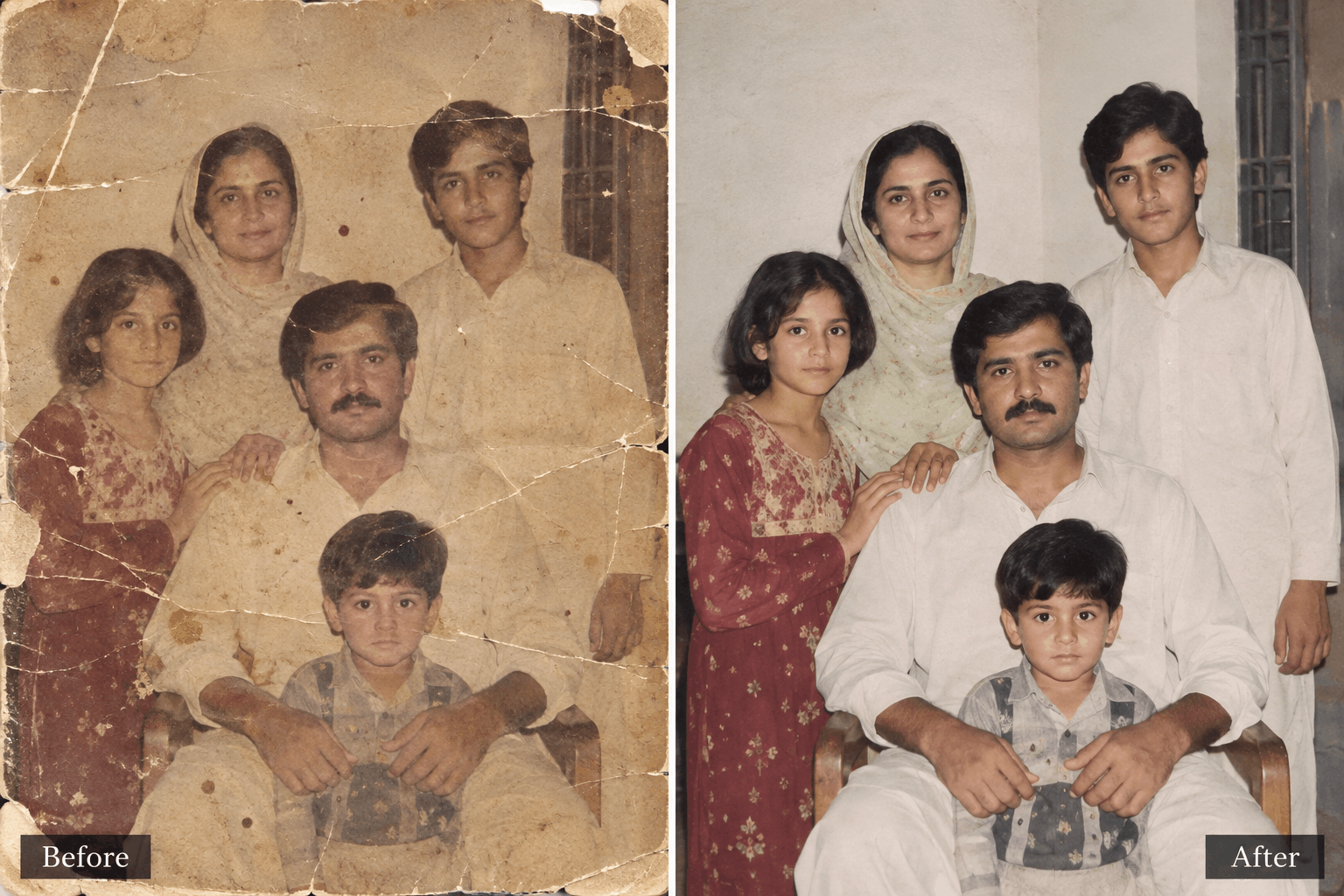
Old photographs can contain details that no modern camera can recreate. AI can help repair scratches, fading, stains and damaged areas — but the real challenge is restoring the photograph without accidentally changing the people inside it.
A simple instruction such as “restore this old photo” sounds straightforward, but it gives an AI image model a surprising amount of freedom.
It may sharpen a face that was originally soft, recreate damaged facial features, change clothing, alter expressions or make an old family photograph look like a modern studio portrait.
That is why a good old photo restoration AI prompt should prioritize preservation before enhancement.
What Can AI Restore in an Old Photograph?
Depending on the original image and the AI model being used, modern image editing tools can help with several common forms of photographic damage.
Why Face Preservation Matters More Than Sharpness
When restoring a family photograph, the face is usually the most important part of the image. Increasing sharpness is useful only if the recovered detail still belongs to the original person.
Generative AI can sometimes fill missing facial information with something that looks realistic but was never actually present in the photograph. That creates an important distinction between restoration and AI reconstruction.
If the AI is uncertain about a damaged detail, preserving the original ambiguity is often better than inventing a visually impressive replacement.
Copy-Paste Old Photo Restoration AI Prompt
Upload the original photograph to your preferred image-editing model and use the prompt below. It is intentionally conservative: the goal is to repair the photograph rather than redesign it.
How to Use an AI Photo Restoration Prompt
The workflow is simple, but the order matters.
- Start with the highest-quality scan or photograph of the original image.
- Upload the image to your chosen AI image editor.
- Paste the restoration prompt.
- Review the face and important objects against the original.
- If something changed incorrectly, make a targeted follow-up edit instead of regenerating the entire photograph.
How to Get Better Results From Old Photo Restoration
Use the Original Photograph Whenever Possible
If you have the physical print, scan it carefully at a useful resolution. If scanning isn't available, photograph the print flat with even lighting and minimize reflections.
Describe the Actual Damage
Instead of relying only on the phrase “restore this photo,” identify what needs fixing.
Targeted instructions give the AI a clearer editing boundary.
Don't Ask AI to Make the Person Look Younger
Restoration and beautification are different goals. If the original photograph shows an older version of someone, preserve that appearance unless you are intentionally creating a separate creative edit.
Don't Over-Sharpen Faces
A blurry old photograph does not contain unlimited hidden detail. Asking for extreme sharpness can encourage the model to invent facial features. Gentle detail recovery usually produces a more believable restoration.
Restoration vs Colorization
These two operations are often confused, but they solve different problems.
Attempts to repair existing photographic information such as scratches, fading, stains, dust and minor damage.
Adds estimated color information to an originally monochrome photograph. Unless the original colors are known, colorization is an interpretation.
Black-and-White Photo Colorization Prompt
If you specifically want to add realistic color to an old black-and-white photograph, use a separate instruction rather than combining every possible edit into one request.
How to Restore a Severely Damaged Family Photograph
Severe damage requires more caution because some information may simply no longer exist in the source image.
If a scratch crosses an entire face or part of the photograph is physically missing, AI may have to reconstruct information. In that situation, the result should be treated as an AI-assisted reconstruction rather than a guaranteed recovery of the original visual information.
For irreplaceable family photographs, keep the original scan untouched and create a separate restored version.
Common AI Photo Restoration Mistakes
1. Using Only “Make It HD”
Resolution language doesn't explain what should actually be repaired. Describe the damage, identity requirements and desired photographic character instead.
2. Removing Every Trace of Film Texture
Old photographs naturally have texture. Removing everything can make the result look like a modern AI render.
3. Using Extreme Saturation
A faded photograph doesn't necessarily need bright colors. Keep color restoration restrained unless you have reliable information about the original colors.
4. Allowing AI to Redesign the Background
If the photograph is historically important, the background can be just as meaningful as the people. Explicitly tell the model to preserve architecture, furniture and objects.
ChatGPT, Gemini and Nano Banana for Photo Restoration
Modern image-generation systems can interpret uploaded photographs and natural-language editing instructions, but their exact behavior varies by model and image.
For restoration work, the most useful capability is not simply image generation. You want an editor that can understand the uploaded reference, follow precise instructions and make controlled changes.
This prompt can therefore be adapted for ChatGPT image editing, Gemini, Nano Banana and other capable AI image editors.
Using a Ready-to-Copy Prompt From Nano AI Prompts
Nano AI Prompts is a free, independent library of practical AI image prompts and photo-editing prompts for tools such as ChatGPT, Gemini and Nano Banana.
When you open a relevant prompt page, you'll find the complete prompt inside the dedicated prompt box. If the prompt is long, simply scroll inside the prompt box and use the visible Copy Prompt button to copy the complete prompt instantly.
You can then paste it into the relevant AI image generator or photo-editing tool and customize the instructions for your photograph.
Find Your Next Copy-Paste AI Prompt
Explore free AI image generation and photo-editing prompts designed for practical results with ChatGPT, Gemini, Nano Banana and other image tools.
Explore Free AI Prompts →Frequently Asked Questions
Can AI restore old photos?
Yes. AI image-editing tools can help repair common problems such as scratches, dust, fading, stains and some soft or damaged details. Results depend on the quality and condition of the original photograph.
Can AI restore an old photo without changing the face?
You can strongly instruct the model to preserve identity, facial structure, expression and apparent age. However, severely damaged or missing facial information may require AI reconstruction, so important photographs should always be checked against the original.
Can Gemini restore old photographs?
Gemini's image capabilities can be used for image editing through natural-language instructions. Detailed restoration instructions can help define what should change and what should remain untouched.
Can Nano Banana colorize black-and-white photos?
AI image models can be instructed to colorize black-and-white photographs. Because the original colors are usually unknown, the resulting colors should be treated as an AI-assisted interpretation unless you provide reliable color information.
Should I keep the original photograph?
Absolutely. Keep the original scan or photograph separately from the AI-restored version, especially when the image has family, historical or sentimental value.
Final Thoughts
The best old photo restoration AI prompt isn't the one that makes an old photograph look perfectly new. It's the one that repairs damage while respecting the photograph's original identity, composition and character.
Start with the best source image available, describe the actual damage, protect every person's identity and use conservative detail recovery. When the original information is uncertain, preservation should win over artificial perfection.
Explore More AI Prompts
Looking for ready-to-copy ideas after reading this guide? Explore a rotating selection of AI image prompts from NanoAIPrompts.
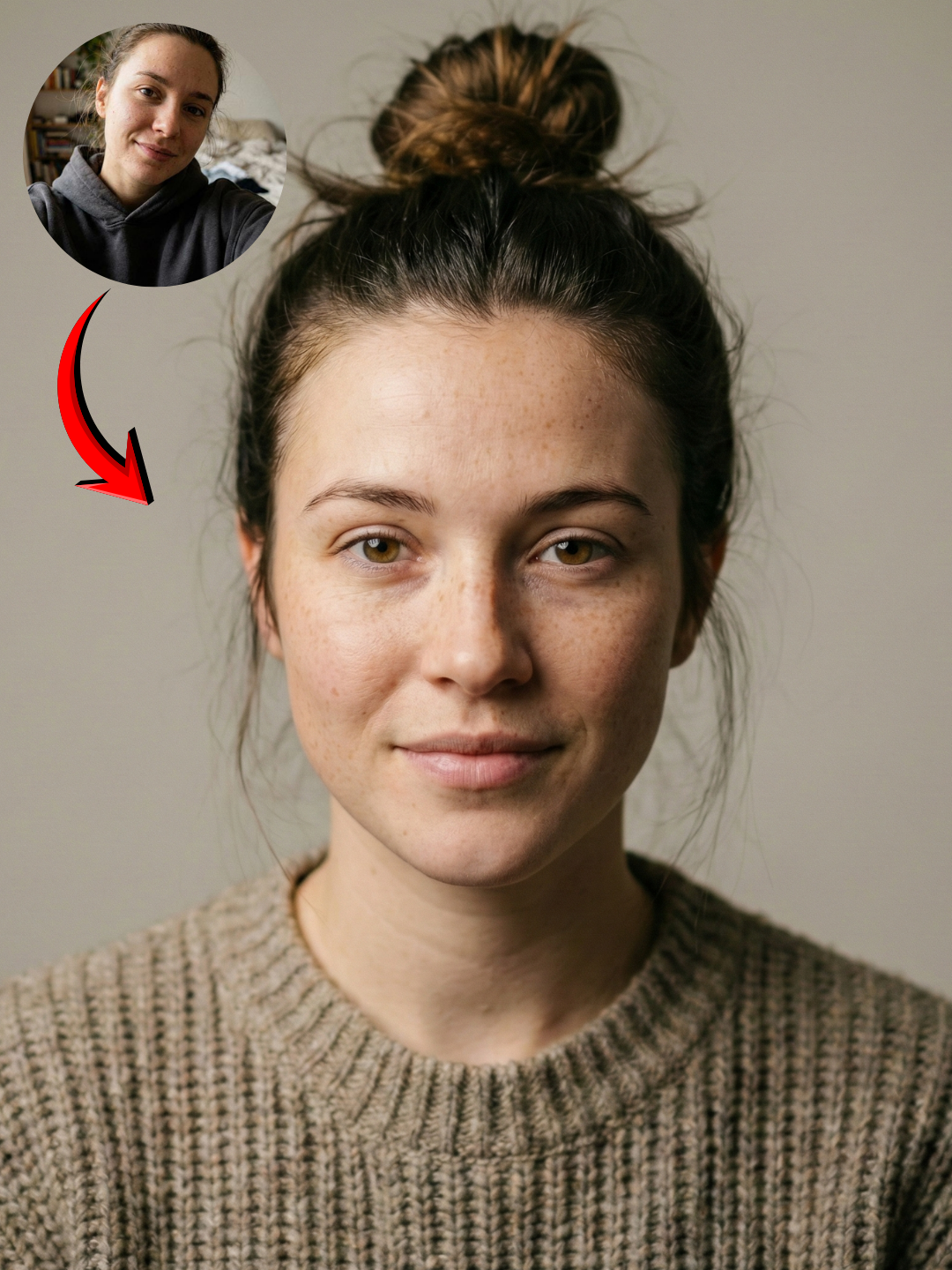 Nano Banana Face Lock Prompt for Photorealistic Portraits
Copy prompt →
Nano Banana Face Lock Prompt for Photorealistic Portraits
Copy prompt →
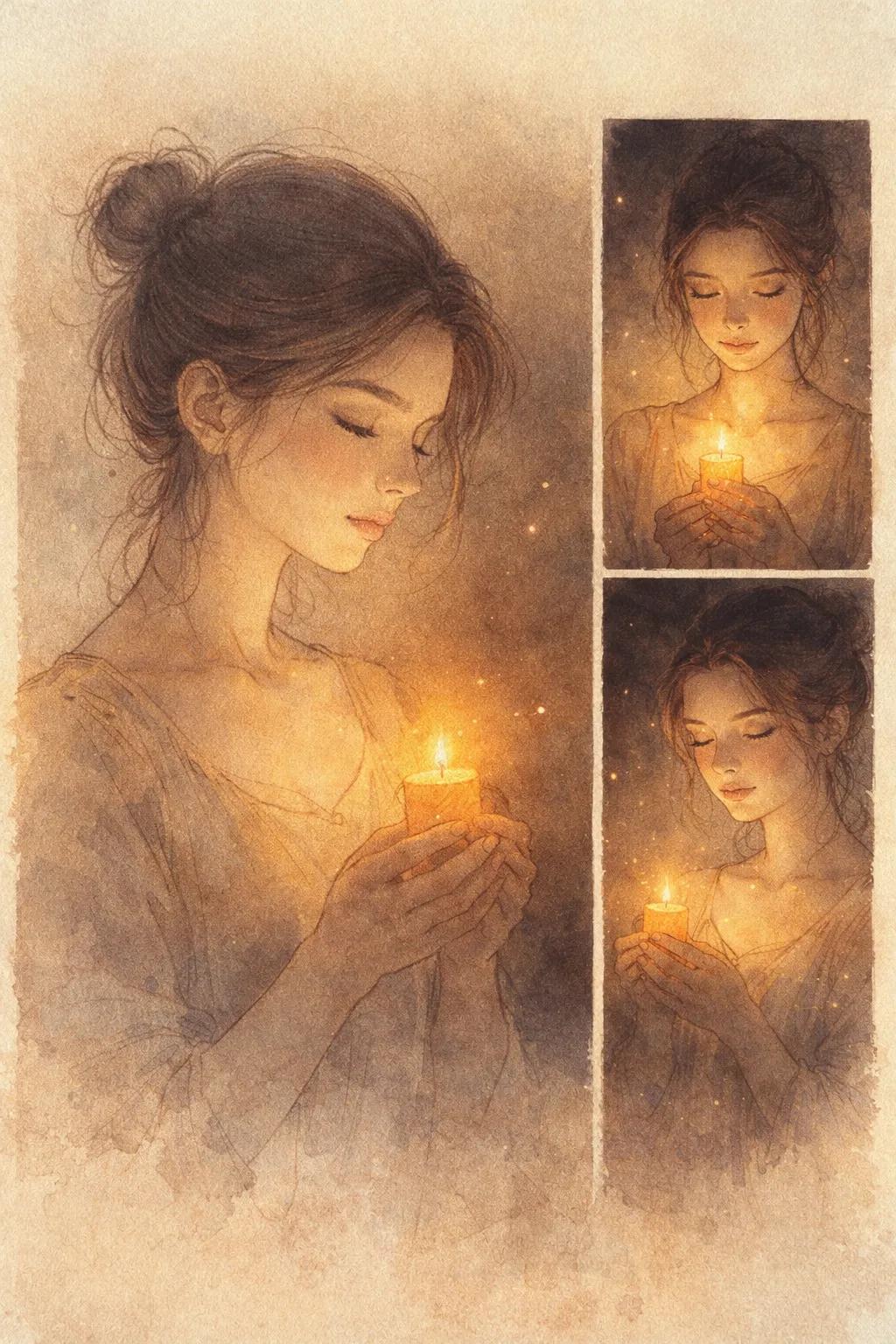 Candlelit Fine Art Illustration AI Photo Prompt
Copy prompt →
Candlelit Fine Art Illustration AI Photo Prompt
Copy prompt →
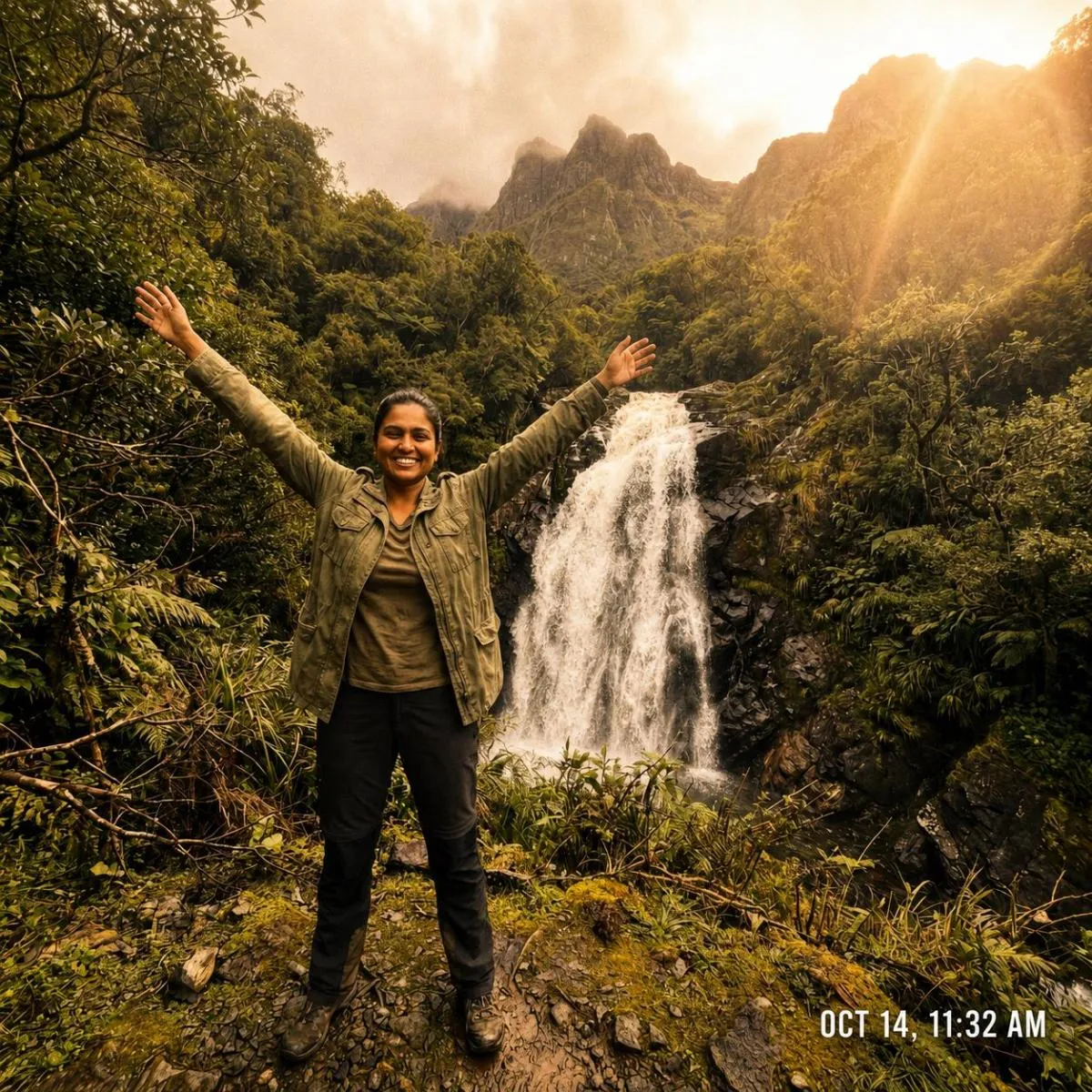 Warm Cinematic AI Photo Style Colour Grading Prompt
Copy prompt →
Warm Cinematic AI Photo Style Colour Grading Prompt
Copy prompt →
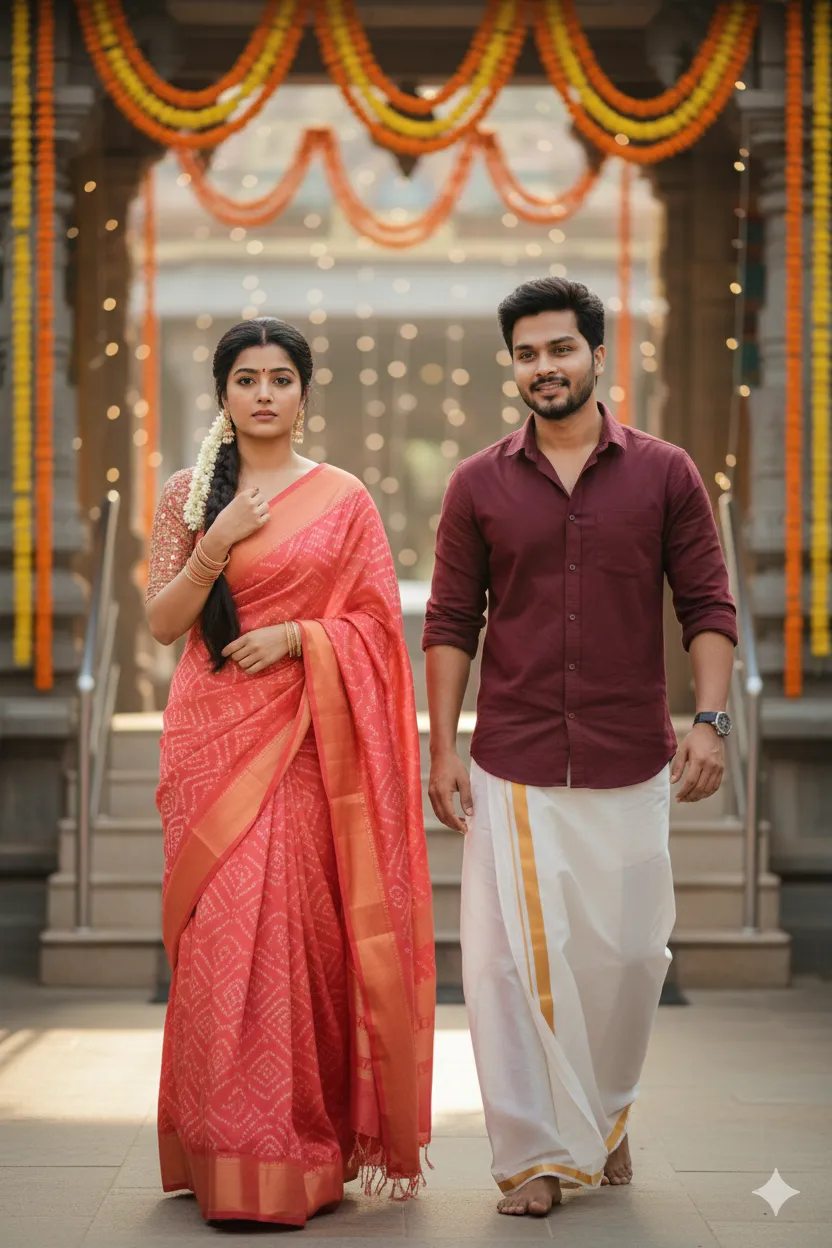 Indian Couple Festive Temple Photo Prompt
Copy prompt →
Indian Couple Festive Temple Photo Prompt
Copy prompt →
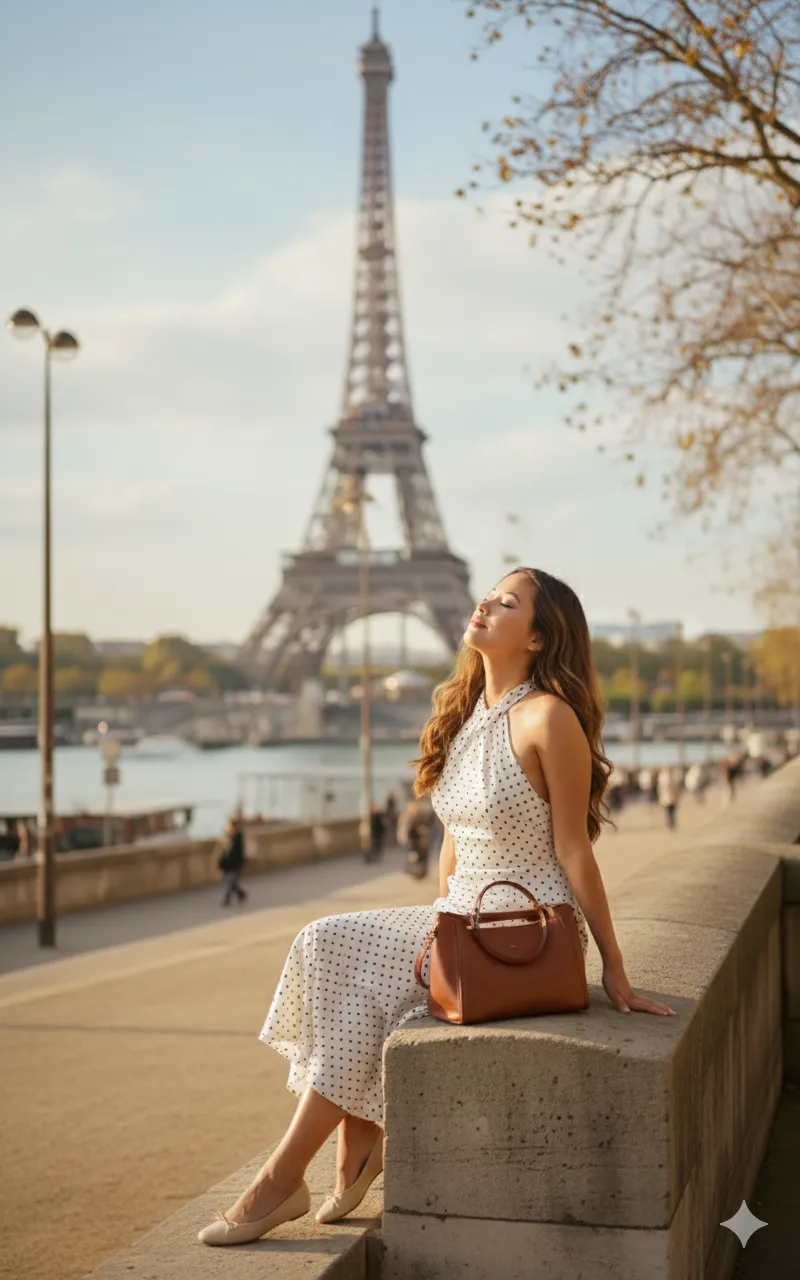 Cinematic Paris Fashion Photo Prompt
Copy prompt →
Cinematic Paris Fashion Photo Prompt
Copy prompt →
About the Author
The Nano AI Prompts team creates practical, high-fidelity prompt resources for modern AI image and photo editing tools.
Explore all AI prompts →