
 ChatGPT
![Cinematic Teal Orange AI Prompt [Colour Grading] — AI generated image](https://nanoaiprompts.com/assets/uploads/img_6a79cf3fad313_1786367807.webp "Cinematic Teal Orange AI Prompt [Colour Grading]")
The Prompt
How to Use this ChatGPT Prompt
Open ChatGPT
Launch the AI image tool.
Add Reference
Upload a photo if the prompt needs one.
Paste Prompt
Copy and paste the prompt above.
Generate
Create your AI image.

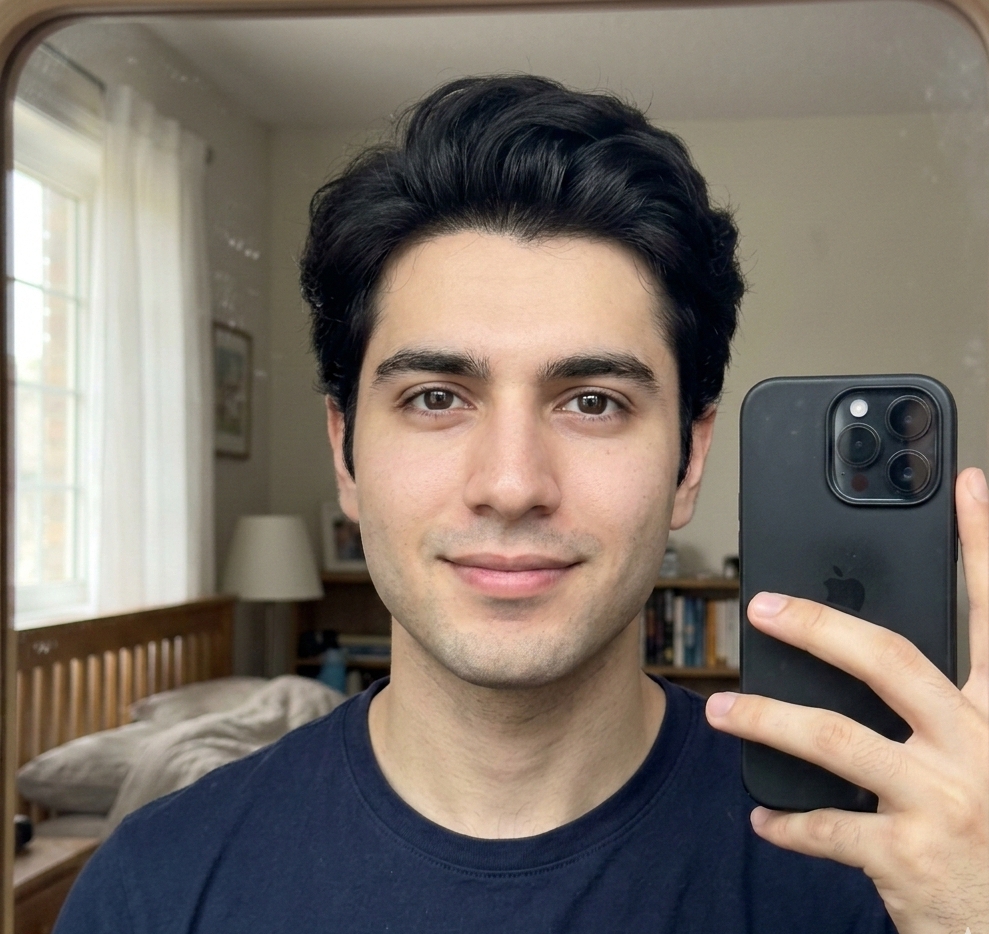
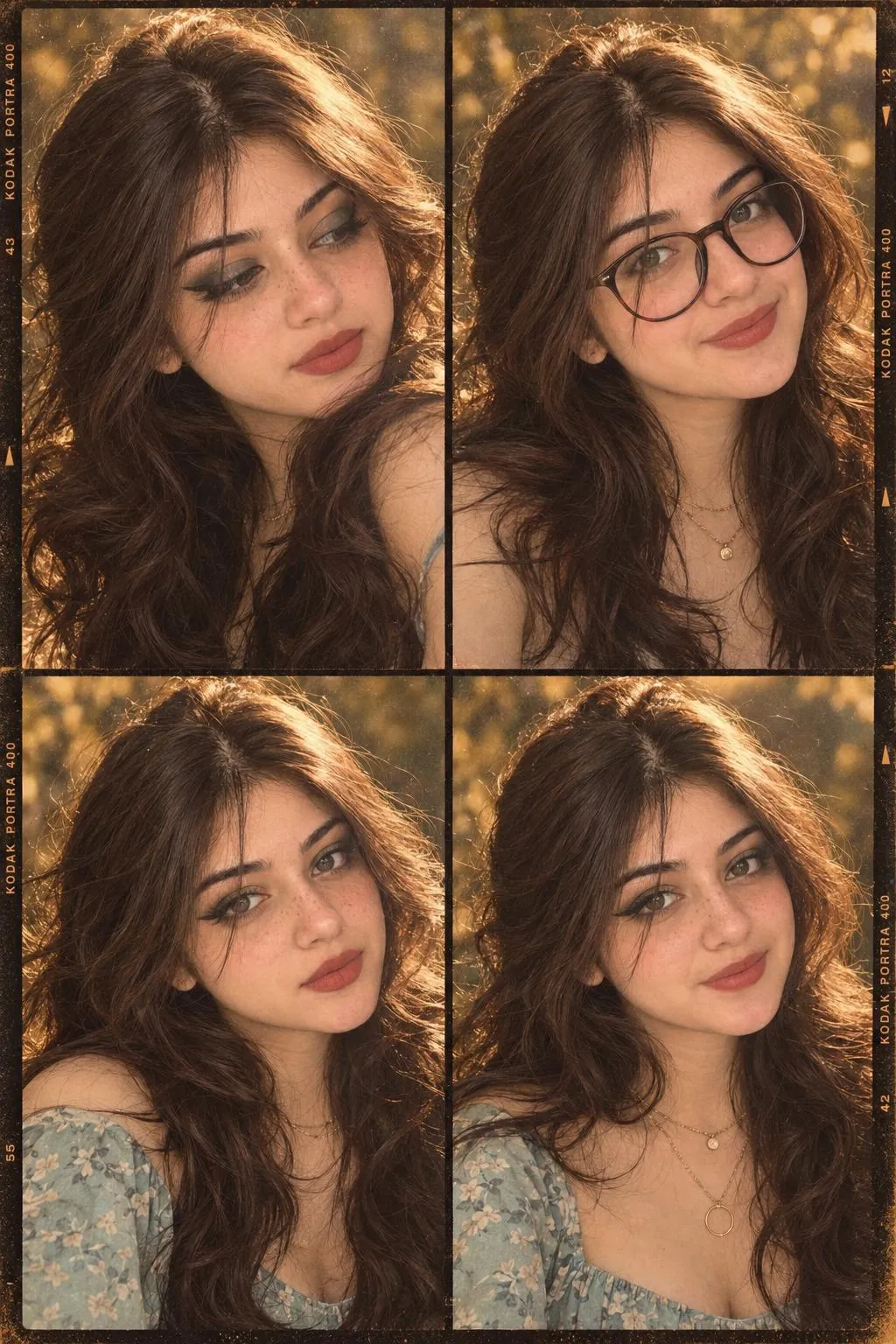
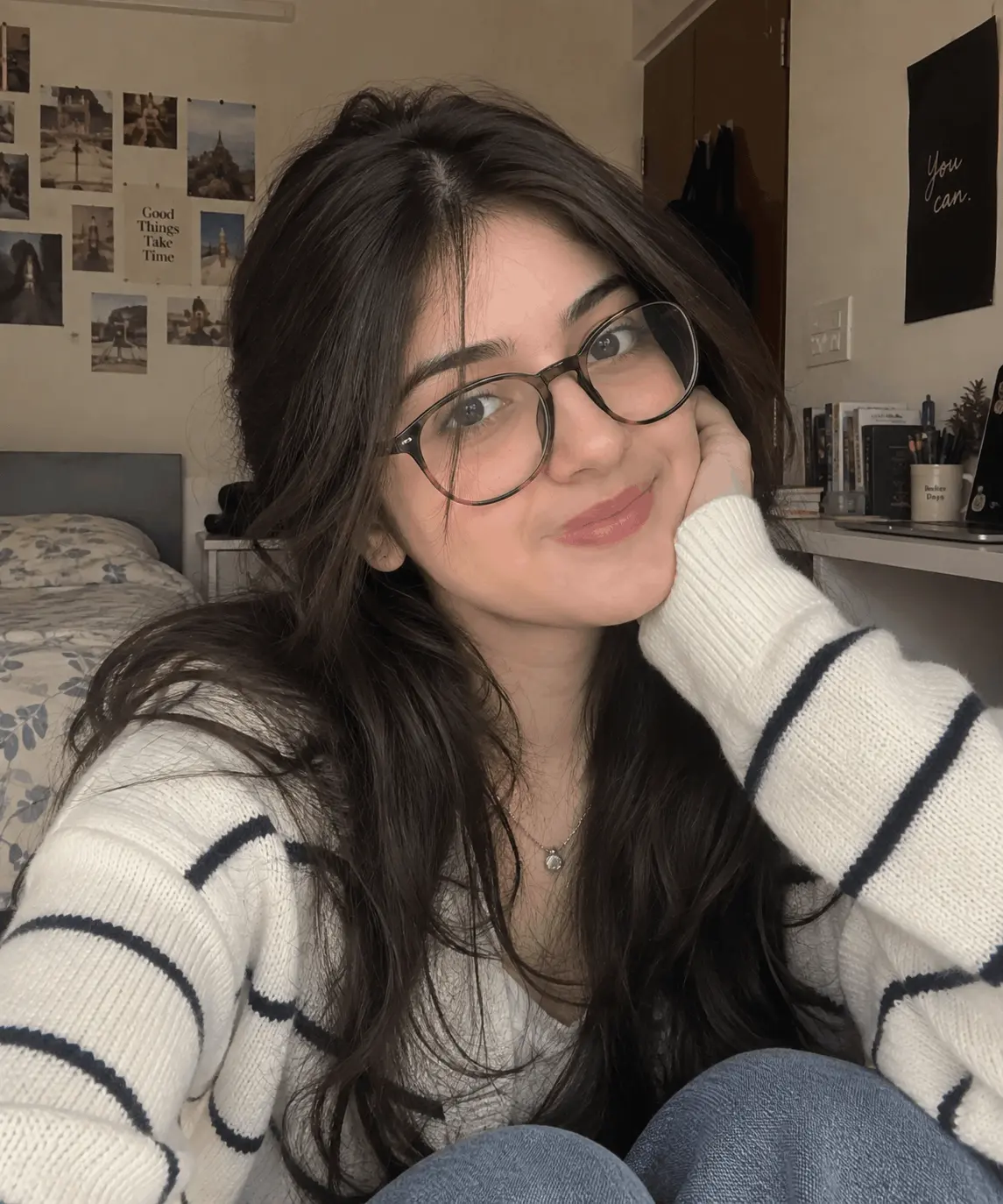
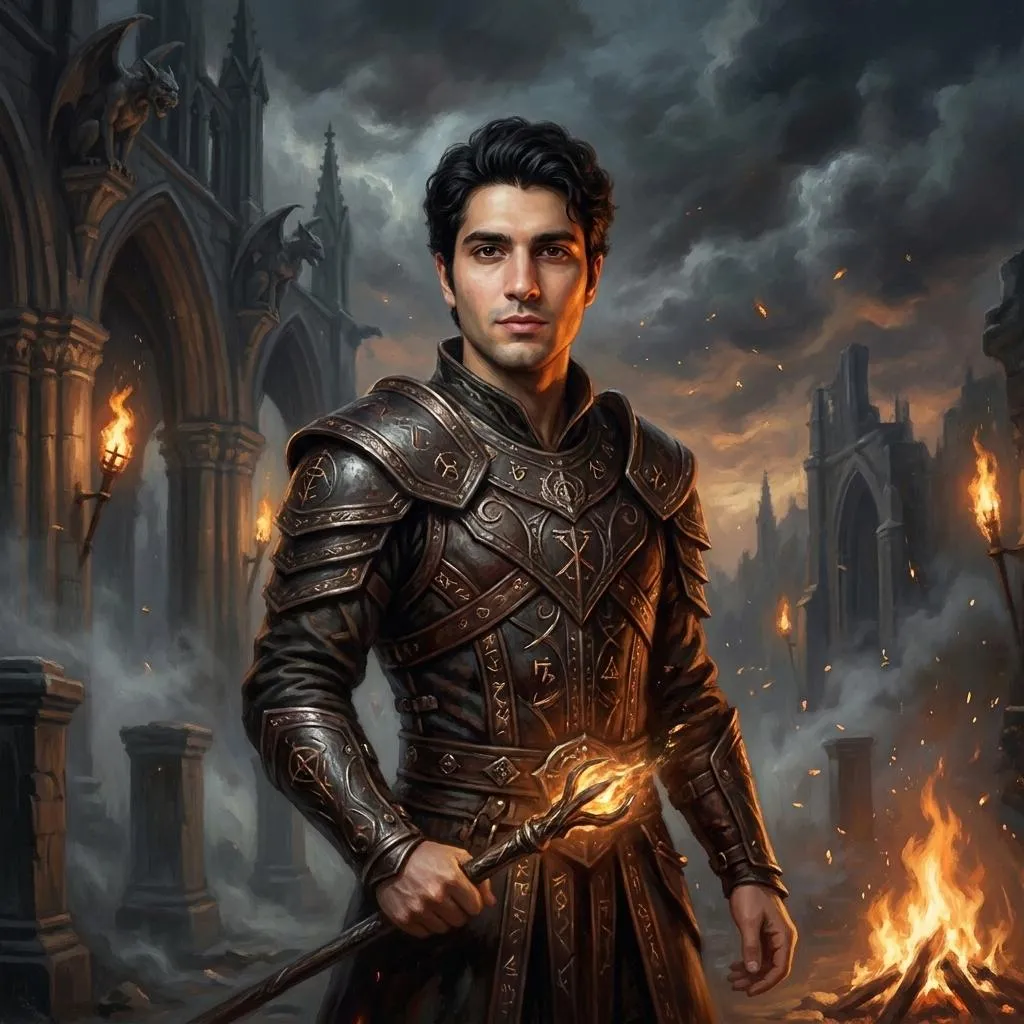
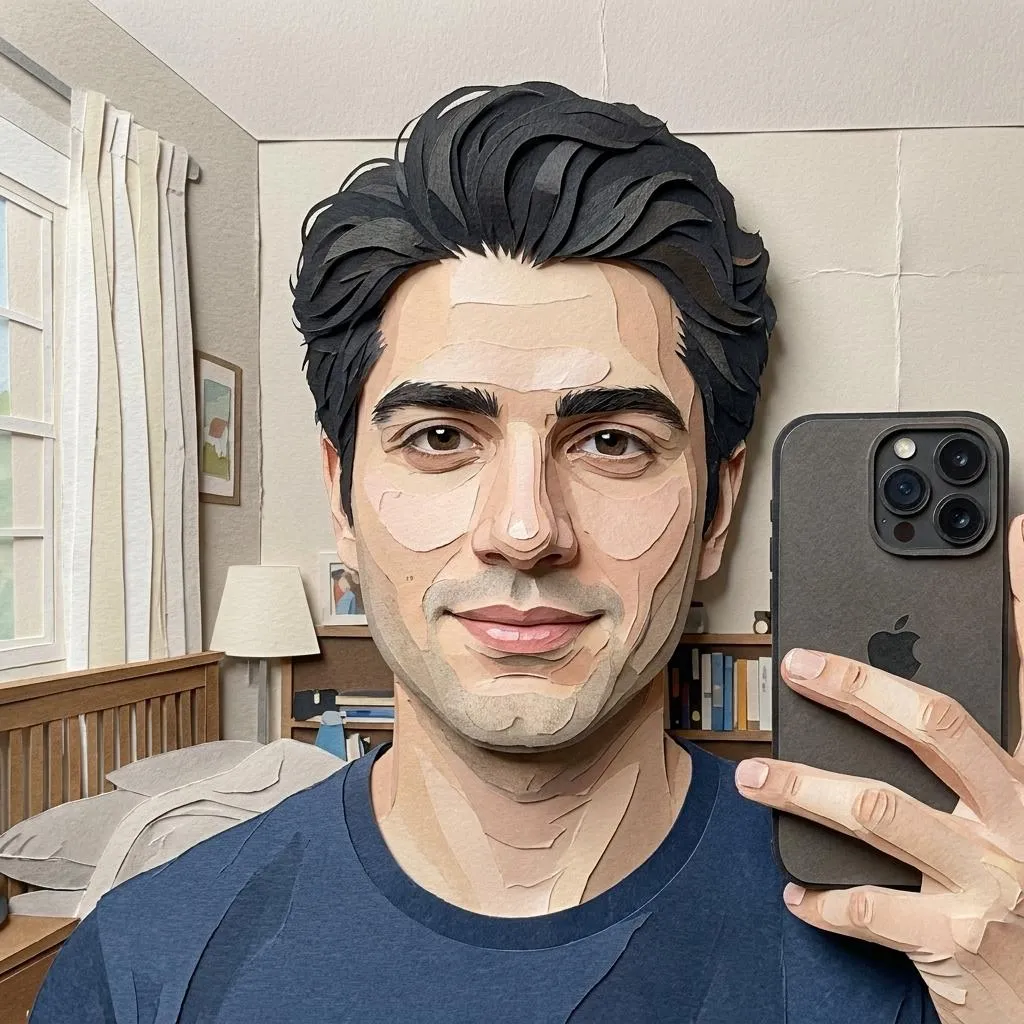
About This Cinematic Teal Orange AI Prompt [Colour Grading] Prompt
This AI image prompt generates a visually striking transformation, applying a sophisticated Hollywood blockbuster teal-and-orange color grade to any existing image. Users can expect their original subject, facial features, pose, and background elements to remain unchanged, as the prompt meticulously focuses on a color grading task rather than regeneration. The output image will feature deep teal/cyan shadows and dark background areas, beautifully contrasted with warm orange-amber skin tones and midtones that maintain a natural, appealing look. The final result is a professionally color-graded movie still, complete with enhanced contrast, subtle chromatic separation, and a distinct cinematic ambiance.
This specialized prompt is ideal for content creators, photographers, and social media influencers looking to elevate their visual content with a dramatic, professional touch. Aspiring filmmakers or anyone curating a cinematic aesthetic for their online presence will find this particularly useful. It's perfect for quickly applying a consistent, high-quality look to a series of images, making it an invaluable tool for branding and storytelling. Whether you're enhancing portraits, landscapes, or lifestyle shots, this prompt offers a shortcut to a polished, film-inspired appearance.
To utilize this powerful AI color grade prompt, simply open your preferred AI image generation tool, such as ChatGPT or Gemini. Begin by uploading the image you wish to grade, then paste the complete prompt into the text input field. Ensure you specify that this is a *color grading task only* to prevent the AI from regenerating your subject or background. The AI will then process your image, applying the detailed color adjustments, contrast enhancements, and stylistic elements described. No complex settings are required beyond pasting the prompt, making it accessible for users of all skill levels.
While this prompt provides a precise Hollywood teal and orange color grading, you can subtly customize the output to fit your specific needs. Experiment with slightly adjusting the percentage values for saturation reduction or the orange/teal channel boost to fine-tune the intensity. You might also specify a slightly warmer or cooler variant of the teal/orange hues if you have a particular vision. For instance, mentioning a 'slightly deeper amber' or 'more muted teal' can yield nuanced results. Remember to keep the core instruction about it being a 'color grading task only' to maintain your original image integrity.
The Hollywood teal and orange color grading has been a staple in blockbuster cinema for decades, signifying drama, action, and a sophisticated visual narrative. This aesthetic remains highly popular across social media and digital content, as it instantly elevates images from amateur to professional-grade. By leveraging this AI color grade prompt, you tap into a proven visual language that resonates with audiences, making your content more engaging and memorable. Embrace the power of AI to achieve complex color grading with ease, and don't forget to explore more innovative prompts like this on NanoAIPrompts.com to continually enhance your creative workflow.
Frequently Asked Questions
Common questions about this AI prompt and how to get the best results.
Pro Tips for Better Results
- Always upload a high-resolution base image to allow the AI to apply the detailed color grading and fine grain effectively.
- If the skin tones appear too orange, slightly reduce the '#e08c4f' range in the prompt to a more desaturated amber value.
- Experiment with varying the 'reduce overall saturation by X%' value to find the perfect balance for your specific image.
- To emphasize the cinematic depth, ensure your original image has clear warm and cool zones for the chromatic separation to enhance.
- Combine this prompt with specific aspect ratio requests (e.g., '2.35:1 aspect ratio') in your initial image generation for an even more authentic movie feel.