The Problem: "New Clothes, New Face?"

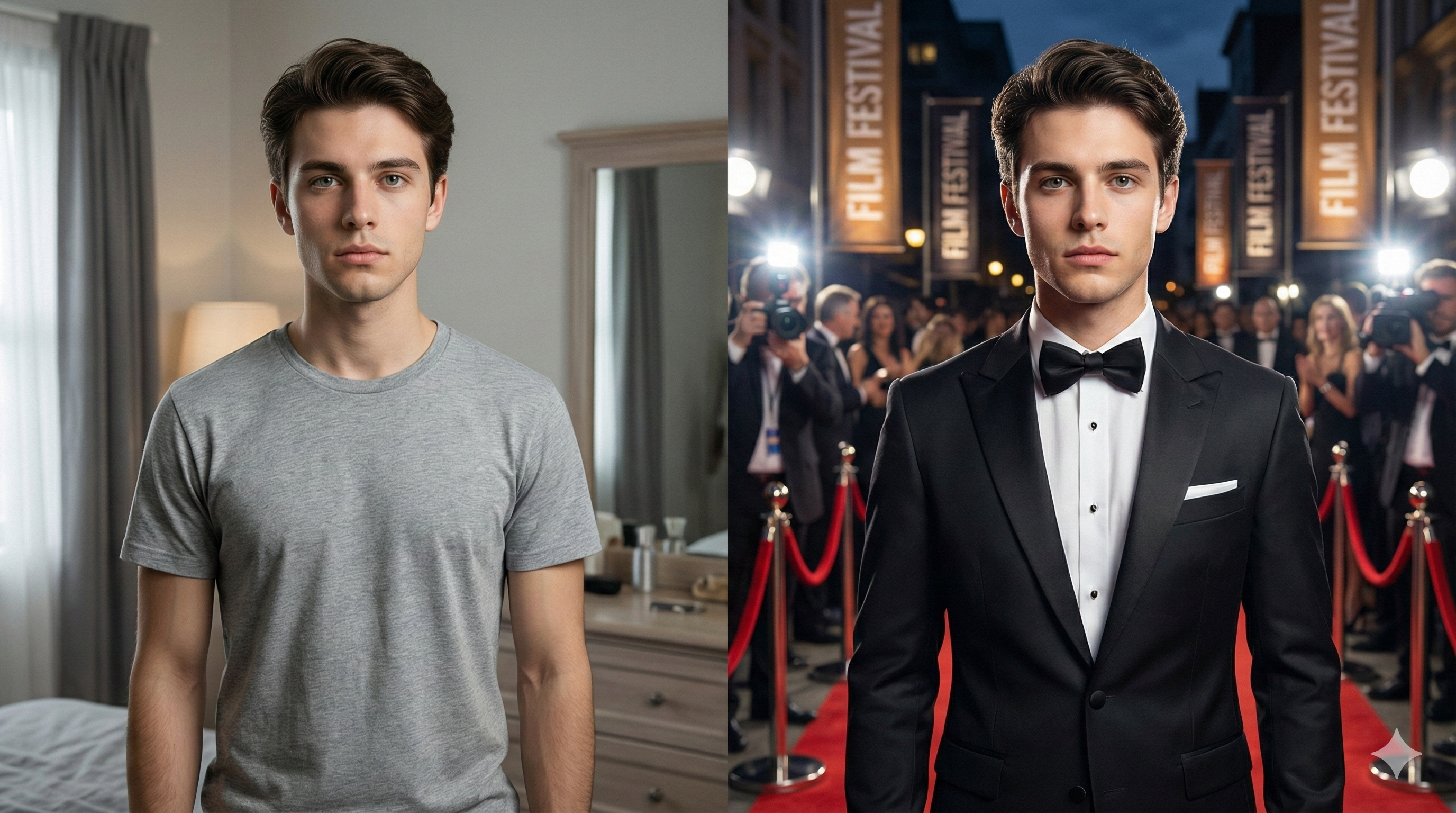
You upload a selfie and ask AI: "Change my t-shirt to a suit" or "Put me in front of the Eiffel Tower."

The AI does exactly thatβ€”BUT it also changes your face. Suddenly, your eyes look different, or your jawline changes. This happens because standard Image-to-Image tools redraw the entire image, including you.

The Solution? You need to tell Google Gemini to "Lock" the facial pixels while only "Editing" the surroundings. Here is how to do it.

The "Partial Edit" Prompt Formula πŸ› οΈ

To succeed, you must separate the "Subject" (You) from the "Environment" (Background/Clothes). Use this prompt structure:

"Change the background to [NEW LOCATION] and change the outfit to [NEW OUTFIT]. CRITICAL: Keep the face, hair, and facial features exactly consistent with the original image. Do not redraw the face. High realism, 4k."

Real-Life Example: Suit Up! πŸ‘”

Let's say you want to turn a casual photo into a LinkedIn headshot.

  • Upload: Your casual selfie.
  • Prompt: "Change the t-shirt to a navy blue professional business suit. Change background to a blurred modern office. Maintain exact facial identity. Lighting should be professional studio style."

3 Pro Tips for Perfect Identity Lock

  1. Use "Inpainting" if available: If you are using advanced tools, use a brush to mask ONLY the clothes/background. This physically stops AI from touching your face.
  2. High Weight on "Face": In your prompt, emphasize the face. Use words like "Preserve facial geometry" or "Do not modify the subject's face."
  3. Don't Change the Angle: Don't ask AI to turn your head. If you are looking front, keep the new image looking front. AI fails when it tries to rotate a locked face.

Conclusion

You don't need professional photoshoots to travel the world or wear expensive suits. With the right Nano Banana Identity Lock prompts, you can edit your context without losing yourself.

Ready to try? Copy our Suit & Office Prompts and test it now!